Step-by-Step Guide to Connecting Google Search Console with Shopify
Connect Google Search Console to Shopify in 5 steps. Learn verification, HTML tag setup, sitemap submission, and best practices for tracking SEO performance.

SEOBaby

Connecting Google Search Console (GSC) to your Shopify store is essential for monitoring organic search performance, identifying indexing issues, and tracking which keywords drive traffic to your site. Without GSC, you're flying blind on how Google sees and ranks your store.
This guide covers everything you need to know: From initial account setup through verification to submitting your sitemap and optimizing your GSC configuration for maximum visibility.
Key facts: Data typically populates within 2-3 days after verification. GSC shows clicks, impressions, average position, and CTR for organic search results only. Your Shopify store must be publicly accessible (not password-protected) for Google to verify ownership.

Step 1: Create Your GSC Account and Add Your Property
Start by going to Google Search Console and signing in with your Google account. If you don't have one, create one first — it's free and takes just a few minutes.
Once logged in, you'll see the GSC home page. Click the "Add Property" button in the top left. You'll be prompted to choose between two property types:
- URL Prefix: Recommended for Shopify stores. Enter your exact store URL (e.g., yourstore.myshopify.com or your custom domain)
- Domain: Covers all subdomains and protocols, but requires DNS verification
Select URL Prefix, paste your Shopify store's homepage URL, and click "Continue."
Step 2: Verify Ownership Using the HTML Tag Method
Google needs to verify you own the website. Several verification methods are available, but the HTML tag method is the simplest for Shopify stores.
On the verification screen, click "Other verification methods" and select "HTML tag." Google will provide a unique meta tag that looks like this:
<meta name="google-site-verification" content="your-unique-code-here" />
Copy this entire tag. You'll paste it into your Shopify theme in the next step.
Step 3: Add the HTML Tag to Your Shopify Theme
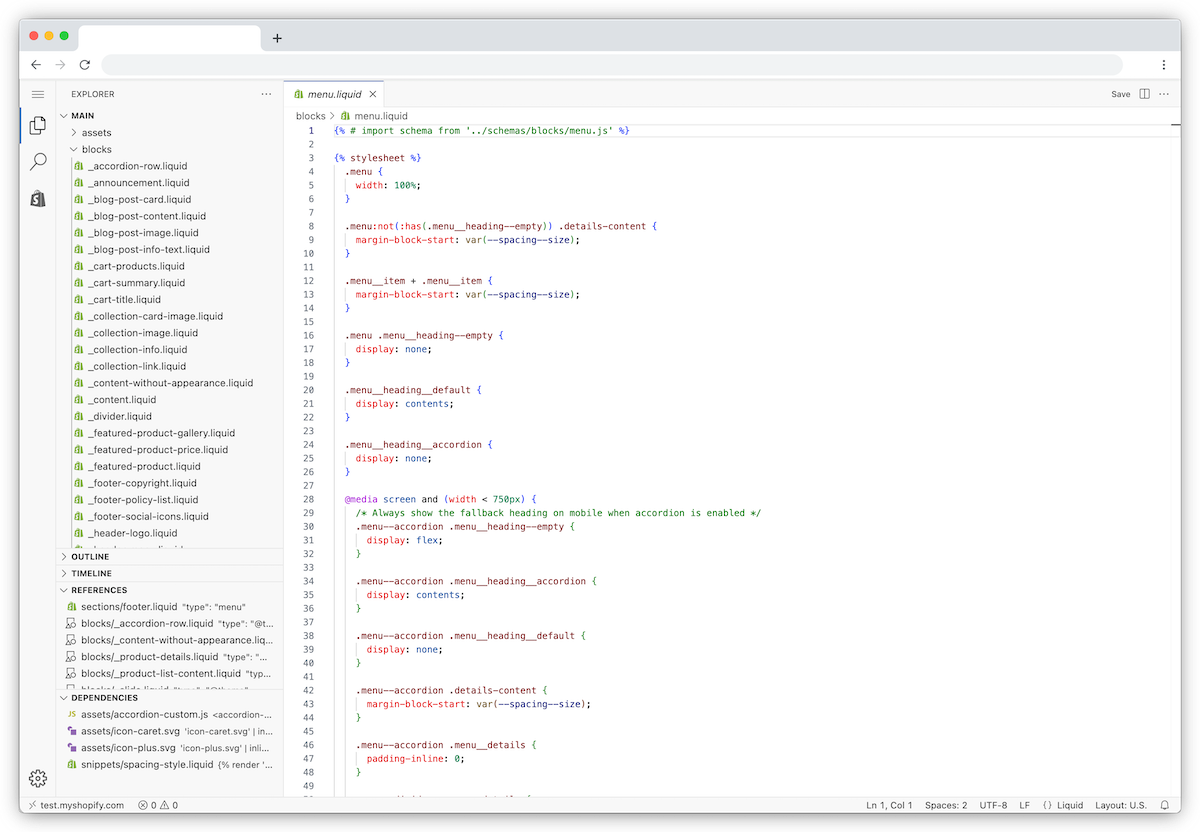
Now you need to add the meta tag to your Shopify theme's HTML code.
Here's how:
- Log into your Shopify admin dashboard
- Go to Online Store > Themes
- Find your current active theme and click the three dots (…) next to "Customize"
- Select "Edit code" from the dropdown menu
- On the left sidebar, locate and click on the theme.liquid file
- Find the
<head>section (usually near the top of the file) - Paste the Google verification meta tag right after the opening
<head>tag - Click "Save"
Pro Tip: Consider creating a backup of your theme before editing code. Click the three dots next to your theme and select "Duplicate" to create a safe copy.
Step 4: Complete Verification in Google Search Console
Return to Google Search Console in your browser. You should still be on the verification page. Click the "Verify" button.
Google will crawl your site looking for the meta tag you just added. If it finds the tag and everything is correct, you'll see a confirmation message: "Ownership Verified."
If verification fails:
- Ensure your Shopify store is not password-protected
- Double-check the meta tag was pasted correctly in the theme.liquid file
- Wait a few minutes and try again — sometimes there's a slight delay
- Verify you pasted the tag between the
<head>tags, not elsewhere in the file
Once verified, GSC will start monitoring your store. Data collection typically begins within 24-48 hours, though it may take longer if your site is newly indexed.

Step 5: Submit Your Sitemap
Submitting your sitemap tells Google about all the pages on your Shopify store, helping ensure they get crawled and indexed.
Shopify automatically generates a sitemap for your store. It's typically located at:
yourstore.myshopify.com/sitemap.xml
Or if you use a custom domain:
yourdomain.com/sitemap.xml
To submit your sitemap:
- In Google Search Console, go to Sitemaps (in the left sidebar under "Index")
- Click "Add a new sitemap"
- Enter your sitemap URL (e.g., yourstore.myshopify.com/sitemap.xml)
- Click "Submit"
Google will process and crawl the URLs in your sitemap over hours to weeks, depending on your site size and crawl budget.
Essential GSC Metrics to Monitor After Setup
Once connected and verified, Google Search Console provides critical SEO insights:
- Clicks: How many people clicked your link in search results
- Impressions: How many times your pages appeared in search results
- Average CTR: Click-through rate — the percentage of impressions that became clicks
- Average Position: Your average ranking position for tracked keywords (lower is better)
- Coverage Report: Which pages are indexed, excluded, or have errors
- Crawl Stats: How often Google crawls your site and if it encounters errors
Monitor these metrics regularly to identify opportunities for improvement and catch indexing issues early.
Common Issues and How to Fix Them
Verification Failed? Check that your store isn't password-protected, the HTML tag is correctly placed in your theme.liquid file, and you waited 24 hours before re-attempting verification.
Pages Not Indexed? Navigate to the Coverage report in GSC. If you see "Excluded" pages, review why Google is excluding them (often due to noindex tags or meta robots directives).
404 Errors or Crawl Anomalies? Use the URL Inspection Tool to test individual pages. Fix broken links and ensure all product/collection pages are properly configured.
No Traffic Data After 2 Weeks? This typically indicates your store hasn't yet ranked for search queries or pages aren't indexed. Focus on technical SEO, quality content, and proper internal linking while you wait for Google to crawl your site more thoroughly.
GSC Best Practices for Shopify Stores
- Check indexing status regularly: Visit the Pages section monthly to ensure new product pages are being indexed
- Fix indexing errors promptly: Address any 404s, redirect loops, or noindex tags affecting your store
- Monitor keyword rankings: Track which search terms drive traffic and identify low-hanging fruit for content optimization
- Segment your analysis: Use URL filters to compare performance between product pages, collections, and blog content
- Watch for duplicate content: Identify if multiple pages are competing for the same keywords
- Update your sitemap when necessary: Remove old sitemaps if you migrate domains or restructure your store
Why This Matters for Shopify SEO Growth
Google Search Console is non-negotiable for any Shopify store serious about SEO. Without it, you can't:
- Track which keywords bring customers to your store
- See your average ranking positions
- Identify and fix indexing problems
- Monitor organic search performance over time
- Detect security issues or manual penalties
This foundational setup takes just 15 minutes but unlocks months of valuable SEO data.
However, setup alone isn't enough. You need to act on GSC insights — improve CTR on high-impression, low-click queries, fix indexing errors, and optimize underperforming pages based on search data.
For Shopify stores looking to systematize this process, programmatic SEO automates the optimization of internal linking, technical SEO, and schema markup across hundreds of pages — so you don't have to manually monitor and fix each issue. This hands-off approach helps drive consistent organic growth from search engines like Google and AI search tools.
Next Steps: Optimizing Your Shopify Store
After connecting GSC, take these next steps to accelerate SEO growth:
- Wait 2-3 weeks for data: Let GSC collect initial metrics before making optimization decisions
- Audit current performance: Check the Performance tab to see which pages rank and which keywords drive clicks
- Fix technical issues: Address any Coverage or Security issues flagged by GSC
- Optimize top pages: Improve CTR on high-impression queries by refining title tags and meta descriptions
- Expand content: Create new content targeting keywords with search volume but low rankings
- Build internal links: Link from existing content to new pages to speed up indexing and improve rankings
For a deeper dive into Shopify SEO, see our complete guide on how to optimize your Shopify store for SEO.
Ready to scale organic traffic faster? SEOBaby automates technical SEO for Shopify stores with zero developer time. In just 5 minutes, set up our platform to automatically optimize schema markup, internal linking, and meta tags across your entire store — driving consistent growth to 1,000+ organic visits per month.